
CSI Dynamic Standards
Search the standards
Find classifications by number, title, or keyword across supported standards and editions.
Search
- Choose a standard and edition.
- Enter a classification number, title, or keyword.
- Select a result to open its details.
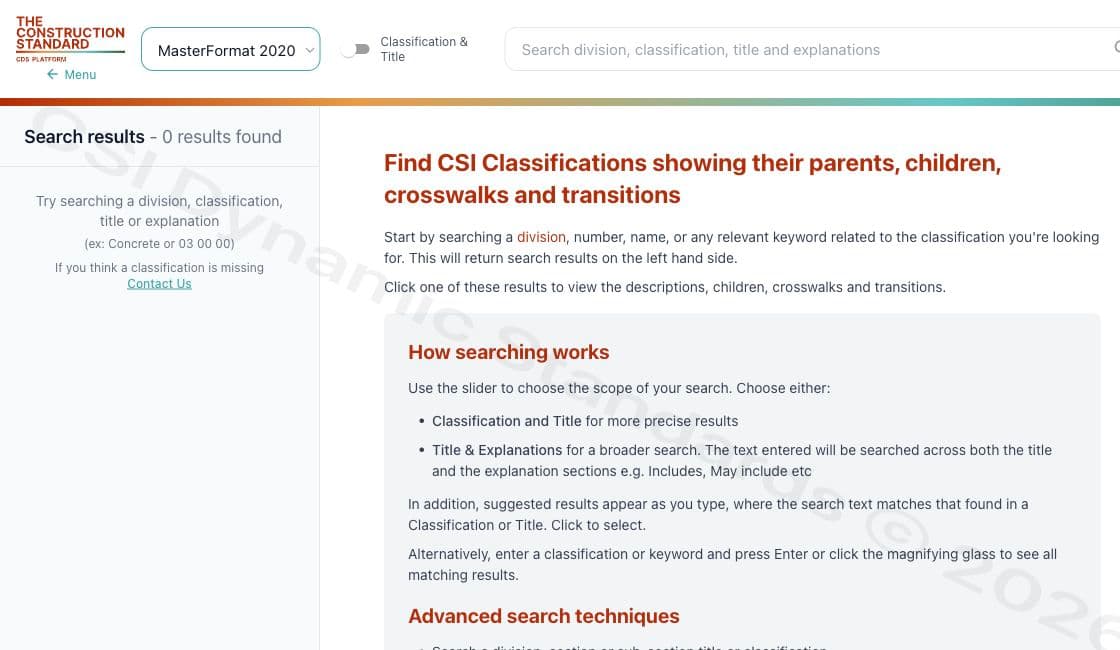
Systems and editions
The selector currently provides UniFormat, OmniClass, and MasterFormat editions 1995, 2014, 2016, 2018, 2020, and 2026. Confirm the active choice before searching because the same query can return different records in another system or edition.
Choose what to search
Classification & Title
Use this when you know the classification number or roughly know its title.
Title & Explanations
Use this when you know what you are looking for but do not know exactly what CSI calls it. This broader option also searches explanatory information such as Includes and May include.
Use suggestions or view all results
Select a suggested match as you type to open it directly. To see every match, press Enter or select the magnifying-glass button.
Search examples
| If you want to | Search |
|---|---|
| Find a classification number | 03 81 00 |
| Search without spaces | 038100 |
| Search by title | Concrete Cutting |
| Find classifications beginning with 03 81 | 03 81* |
| Find variations of a word | finish* |
| Find an exact phrase | "Wood Trim" |
Explore a classification
- Run a search and open the classification you want to examine.
- Review its description and any broader parent or more specific children.
- Select More when additional guidance is available.
- Use a Crosswalk to open a related classification in another standard.
- Use Transition to MF2026 to review an available edition change from MasterFormat 2020.
| If you want to | Use |
|---|---|
| Learn what a MasterFormat classification includes | More |
| See related classifications in another CSI standard | Crosswalk |
| See how a MasterFormat 2020 classification changed in MasterFormat 2026 | Transition |
Not every classification displays every option. The available information depends on the standard, edition, and classification.
Use the clipboard
Use the copy control beside a result to save its classification and title. The clipboard shows how many classifications you saved, lets you add notes, and provides Copy All for your saved classifications and notes.
Not sure where to start?
If you do not know the exact classification, start broad. Search for a general subject such as Concrete, then use the results and hierarchy to narrow your search. For example, you can move from 03 00 00 — Concrete toward 03 20 00 — Concrete Reinforcing.
See Browse MasterFormat classifications for the parent, child, and tree workflows.